



WordPress Blog Automation for Several Sites from One Interface
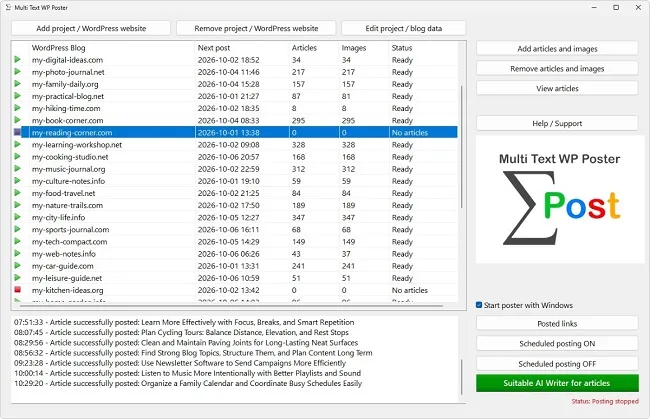
WordPress blog automation gets interesting once you run more than one site. The tool acts like a control desk. Every blog is a separate project with its own login, its own folder and its own publishing rhythm, and all of them show up in a single list. You do not have to sign in to ten backends to keep ten blogs alive. That makes it a practical helper for agencies, for owners of niche site portfolios and for anyone who wants one overview instead of many browser tabs.

A single blog can still be fed by hand with a bit of discipline. With three, five or twenty sites the balance tips. Each site has its own credentials, its own categories, its own rhythm, and somewhere in between the overview gets lost. Anyone who serves agency clients, runs a portfolio of niche sites or maintains several projects in parallel therefore needs a structure for WordPress blog automation that grows with the number of sites. This article is about how to organize WordPress blog automation in practice and what to watch in everyday operation.
The Principle of One Project per Site
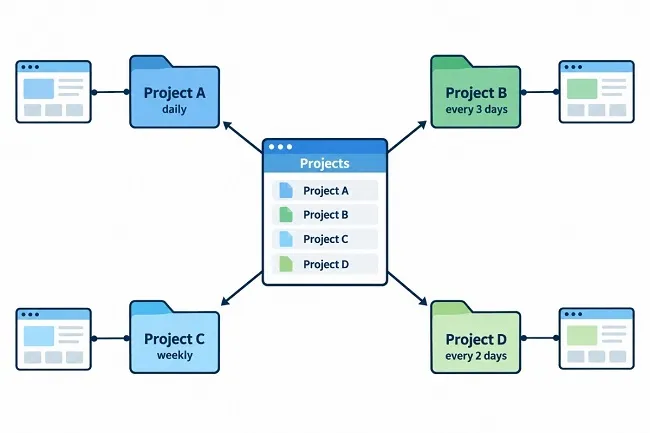
The basic idea of WordPress blog automation is plain. Every WordPress site gets its own project, and every project lives in its own folder. In it lie the articles and images of that one site, plus the credentials, the chosen interval, the order and the next date. None of this is shared between projects. If you change the rhythm for site A, site B is untouched.
This separation is the real gain of WordPress blog automation. You can pause, rebuild or delete a project without endangering any other site. You can run sites with completely different conditions side by side, such as a guide with daily posts and a magazine with one post per week. And you can hand a single folder to a colleague or client without showing them the rest of your holdings.
Multi Text WP Poster is designed for this case from the start. If you create another project, another folder is created, and WordPress blog automation takes it into account from the next pass. Setting up a new project for WordPress blog automation works the same way every time, so after the first two or three sites you develop a fixed routine.
The Project Overview as a Control Center
In the main window of your WordPress blog automation you see all projects as a list. Each row shows the address of the blog, the next planned post, the number of waiting articles and images, and a status. That is enough to see at a glance which sites are well supplied and which will soon run empty. If a project says "No articles", restocking is due; with "Ready" everything is fine.
All actions in WordPress blog automation that refer to a single site require you to select the project first. These include "Add articles and images", "Remove articles and images", "View articles" and "Edit project / blog data". If you have not selected a row, the notice "Please select a project first." appears. That prevents an import from accidentally landing in the wrong blog, and it is worth briefly checking which row is currently highlighted before every import.
The switches "Scheduled posting ON" and "Scheduled posting OFF", by contrast, act on all projects of your WordPress blog automation at once. There is no individual switch per site. If you want to let just one site rest temporarily, empty its folder of articles or move the files elsewhere for the time being. Without articles, WordPress blog automation reports no error but simply skips the project.
Different Rhythms for Different Sites
A portfolio in WordPress blog automation rarely consists of identical sites. Some have a large text stock, others hardly any. Some need speed because they have just launched, others should run calmly. Because every project has its own setting, WordPress blog automation lets you run each site according to its needs. The following table shows an example of what a small portfolio in WordPress blog automation might look like.
| Site | Situation | Rhythm | Order |
|---|---|---|---|
| Guide A | new, 60 articles available | every day | by article date |
| Magazine B | established, little new material | every 7 days | random article |
| Niche site C | 30 articles, calm topic | every 3 days | random article |
| Client blog D | agreed frequency | every 2 days | by article date |
What matters is that you align the rhythm of a site with its own supply and not with that of the others. It happens that a project with a high frequency uses up its stock faster than new texts are created. A glance at the "Articles" column tells you early enough where restocking is needed next. Set aside a fixed weekday for going through the overview, the way others empty their inbox.
How Several Projects Are Processed One after Another
WordPress blog automation handles due projects one after another. There is no simultaneous sending to several sites. In practice this has a consequence worth knowing: if a site does not respond, WordPress blog automation waits up to 90 seconds per transfer step before the next date gets its turn. A single slow server can therefore delay the other posts by a few minutes.
With few projects in WordPress blog automation that does not matter. With many it can add up, especially if several sites sit on the same weak hosting and respond sluggishly at the same time. Because the dates are scattered by the random share anyway, several projects rarely land in the same minute. Should things get tight anyway, it helps not to run sites on reliable servers and sites with frequent outages at the same intervals.
Only when a date has passed is a project touched at all. If one site runs badly, it has no influence on the content of the others. Their articles, images and schedules remain untouched, and after the failed attempt the next site gets its turn.
Order in Everyday Work Means Keeping Texts Separate
In WordPress blog automation with several sites, the biggest danger lies in mix-ups. A text about garden care in the folder of a finance blog happens quickly when files lie around loose on the computer. It has proven worthwhile to assign every delivery to the right project immediately and not leave it in a shared collection folder. Name incoming files by the pattern with the running number so that the order stays clear.
When importing into a project, WordPress blog automation loads the categories of the respective site. You therefore choose from the real categories of the blog you are importing for, not from a general list. Category numbers differ from site to site, so an article with a category number from blog A does not simply belong in blog B. This point is often overlooked when moving texts between projects.
One practice is also explicitly to be avoided: the same text on several of your own sites. Search engines do not treat duplicate content as an asset, and your readers see immediately that it is recycling. If several sites cover the same topic, write or commission separate versions. The extra effort is small compared with the damage a copy can cause.
A Fixed Weekly Routine for WordPress Blog Automation
The more sites run in WordPress blog automation, the more important a small, recurring check becomes. It does not have to be long. Ten minutes a week are enough if it always follows the same pattern. Without a fixed routine you only notice that something is missing when a client asks or a site has been silent for days.
- Open the project overview and check the "Articles" column. Projects with fewer than ten texts go on the restocking list.
- Check the status column. Anything other than "Ready" deserves a second look.
- Compare "Next post" with today's date. If a date lies conspicuously far in the future or in the past, something is wrong.
- Take a look at the "Posted links" list. It brings all blogs together in one place, so you can see whether each project has actually published something recently.
- Load new texts into the projects that need restocking, and check that the right row is highlighted while you do.
With this routine, WordPress blog automation keeps the effort per site almost independent of the number of sites. The overview shows you where action is needed, and you deal only with those cases. Everything else keeps running without your intervention. With agency clients in particular, the list can also serve as proof: it shows when which post appeared.
Changing, Moving and Removing Projects
If a site moves in your WordPress blog automation, for example to a new domain, you change the address in the project and test the access data again. You usually only need a new application password if the access was revoked on the site itself or got lost in the move. All articles and images stay in the folder and are used further without a detour.
If a project is to disappear from your WordPress blog automation entirely, use "Remove project / WordPress website". Note that this function deletes not only the entry in the overview but the entire project folder including all articles and images. The program protects you with two safeguards: you have to tick a checkbox stating that you want to permanently delete the folder and then confirm the follow-up question. Beforehand it shows how many article and image files are still in the folder. With a large stock it is therefore worth looking at this number.
Before you remove a project, simply copy the folder to a safe place. That way the stock is preserved in case the site is later meant to come back into the program. A backup takes seconds; an accidentally deleted text stock costs weeks of work.