



AI Photo Colorizer for Old Prints and Archives with no AI Costs
Weddings, portraits and street scenes from long ago return in natural color, and every detail stays in place.Scanned or photographed pictures receive fitting colors with MKGpics AI PHOTO COLORIZER, an AI photo colorizer for the PC. It reads the content, colors skin, sky, clothes and plants, and saves the colored version beside the untouched original.

The AI Photo Colorizer Feature by Feature
- Colors black and white and faded prints naturally
- Natural colors for faces, clothing, sky, grass and buildings
- Adjustable render size for lighter or more detailed coloring
- Recommended and High quality presets with one click
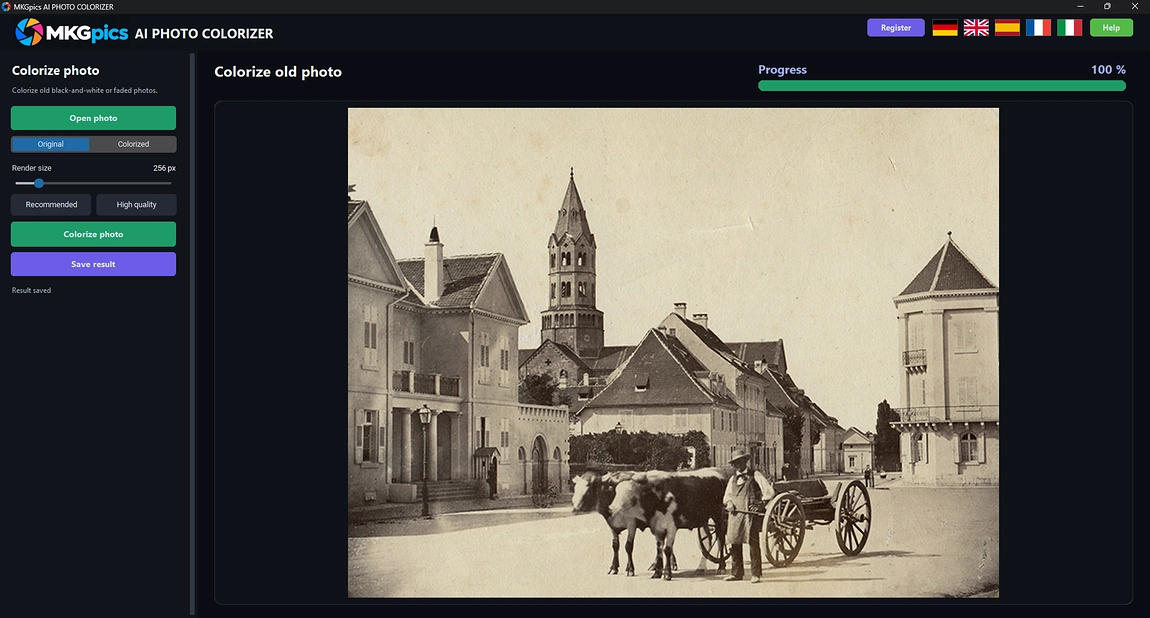
- Original and Colorized views switch in the preview
- Opens PNG, JPG, JPEG, WebP and BMP scans
- Saves the colored picture as PNG, JPG or WebP
- Result receives a new name, the original stays untouched
- Coloring runs locally, no scan is uploaded
- Fresh Python AI libraries run on the own PC, AI costs nothing
- No subscription and no ongoing costs
Researchers and Clubs Coloring Old Pictures
It serves everyone who owns historic pictures and wants to see the past in color.Old scans are personal, so the AI works on the PC itself and sends nothing to a server. Archives, museums and schools keep their holdings in house, and private users enjoy the same protection.
- Local historians bring portraits of past generations back to life.
- Genealogists enrich their research with colored portraits.
- Museums and local archives refresh exhibits and picture books.
- Authors, teachers and editors illustrate history with vivid images.
- Photographers and restorers deliver colored prints to clients.
- Beginners, hobby photographers, professionals and designers color black and white pictures in a few steps.
Traits of a Convincing Colorization
Believable color needs a clean scan, the right render size and a critical eye.Why does the scan matter? A sharp, evenly lit scan gives the AI clear shapes to work with, while cracks, stains and dust remain visible after coloring. Old prints are therefore scanned at a good resolution before they are colored.
Example: a faded wedding portrait from a drawer. After the scan, the AI gives the skin a natural tone, the dress and the flowers receive plausible colors, and the preview switch shows the original next to the result.
Which render size fits which scan? A small value finishes quickly and paints calm, even tones, while a larger value delivers richer detail in hair, fabric and foliage. The Recommended preset suits a first attempt, and High quality follows when a result deserves more depth.
Are all colors right? Skin, sky, grass and wood have well known tones, and the AI applies them according to the recognized content. Uniforms and cars with unusual paint differ from history at times, so the comparison with the original matters.
Example: a harbor view from an old album. Sky and water receive calm blue tones, the boats keep their texture, and a second run with a larger render size gives a richer variant that is saved next to the first.
Turning a Scan into a Finished Color Photo
Open the scan, pick a render size and start the coloring. The preview shows the colored picture, which is compared with the original with one click before saving.Scans in PNG, JPG, JPEG, WebP or BMP format load directly. The colored picture is written as PNG, JPG or WebP. The program proposes a new file name ending in colorized and refuses to overwrite the source, so the old print always survives.
AI photo colorizer free download here
The AI photo colorizer needs no layers, no masks and no art skills, because the program decides about every region and delivers a complete picture in one pass.
Changing the render size and running the program again gives a second variant within moments. Both results stay next to each other on the disk, so a quiet version for a photo book and a rich version for a poster come from the same scan.
First Steps to Colorize Black and White Photos AI
Three actions finish a picture: open the scan, choose the render size, press Colorize photo.After the scan is open, the Recommended preset gives a solid first result. Press the button and the coloring starts. The colored version appears in the preview as soon as the calculation ends, and the AI photo colorizer needs no further input.
The render size serves the fine tuning. Lower values keep colors calm and finish fast, higher values add detail to textiles, gardens and faces. High quality is the choice for portraits that will be printed large or shown in a book.
» Free download now
Compare original and colored view before saving, and adjust the render size if the tone feels off.
Skin tones deserve the first check. If faces look too pale or too warm, another render size and a second run bring a different balance. Sky and meadow rarely need a second try, because their colors are easy to recognize.
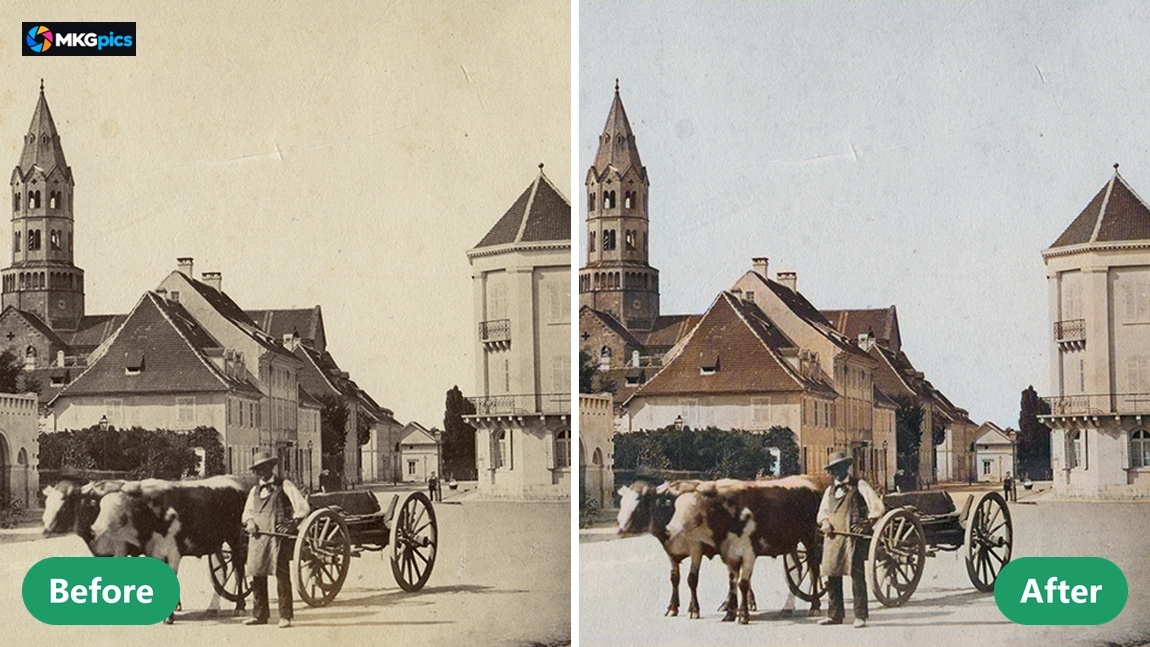
Because the AI photo colorizer never touches the source file, any number of variants are kept. A faded wedding portrait, a school class from long ago and a harbor view each get their own colored file, and the archive keeps the original scan as a reference.
Old Pictures Waiting for Color
From a portrait to an entire archive, history gains color.Hobby photographers scan shoeboxes of prints and colorize black and white photos of weddings, holidays and portraits for anniversaries and birthdays. A framed colored portrait connects generations far better than a gray print in an album.
» Download free here
Local historians, museums and publishers use it to colorize black and white photos for exhibitions, town chronicles and school material. Streets, markets and factories look present instead of distant, and visitors and students read the pictures faster.
Photographers and restorers offer colored versions as an extra for clients. Every scan gets a render size and a result that fit the picture.
Straight Answers on the AI Photo Colorizer
What does the AI photo colorizer do?
It adds natural colors to black and white or faded photos, shows the result next to the original and saves the colored version as a separate file.
Is the black and white scan replaced by the colored version?
No. The colored picture is saved as a new file, and the black and white scan stays untouched.
Is a subscription needed for the AI photo colorizer?
No. Download is free, everything runs on the own computer, and neither a subscription nor later expenses exist.
Who needs to colorize black and white photos AI?
Local historians, genealogists, museums, archives, teachers, authors and photographers who want historic pictures in color without uploading them anywhere.
What does the render size change?
Small values finish fast with calm tones, larger values add detail to faces and textiles, and the presets Recommended and High quality set both with one click.
Which file formats does the program support?
Scans open as PNG, JPG, JPEG, WebP or BMP and are saved as PNG, JPG or WebP, while the original file is never overwritten.
Does colorize black and white photos AI work offline?
Yes, the coloring happens on the own PC. Nothing is uploaded, and no internet connection is needed to process a scan.
Can I compare the result with the original?
Yes, one switch in the preview toggles between the original and the colored picture, so faces and clothing are checked before the file is saved.