



Batch AI Image Upscaler for Large Photo Archives without Cloud and with no AI Costs
Small photos grow to twice or four times their width and height in one run and keep their detail.One run enlarges a full folder with MKGpics AI BATCH PHOTO UPSCALER, a batch AI image upscaler and a batch program. The AI rebuilds every picture with new detail, and the program runs without a subscription and without ongoing costs.

The batch upscaler turns low resolution archives into files that suit prints, large screens and online shops.
Strengths of the Batch AI Image Upscaler
- Enlarges many photos automatically in one run
- Choice between 2× and 4× width and height
- AI rebuilds edges, textures and fine structures
- Adjustable detail strength
- Lower strength gives a softer, more natural look
- Saves results as PNG or high quality JPG
- Reads PNG, JPG, JPEG, WebP, BMP and TIFF files
- Picks up the whole folder of a chosen file on request
- Result files end with _upscaled
- Tiles large photos with overlap for an even result
- Lowers the factor on its own when a file would grow too large
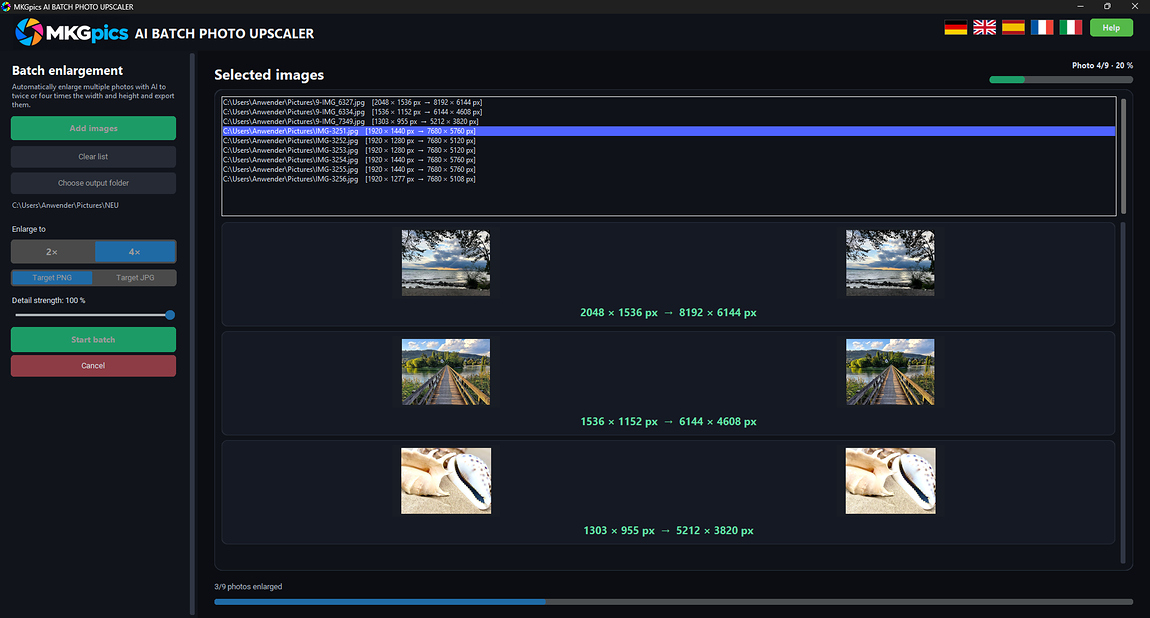
- Preview shows original and enlarged photo side by side
- Originals stay protected, their folder is refused as target
- Stops at once on request, completed files are kept
- Failed files are collected in one list
- Modern AI libraries from Python work locally, and the AI costs nothing
- Runs offline on the local PC
Studios and Shops That Use MKGpics AI BATCH PHOTO UPSCALER
It suits everyone who owns many small images and needs larger, crisper versions of all of them.The AI works on the local PC, so customer files and private pictures stay at home and never become training data.
- Photographers enlarge cropped frames and older low resolution shoots for prints.
- Online sellers raise supplier images to the size that marketplaces expect.
- Designers and agencies prepare small logos and stock images for large formats.
- Archives and scan services enlarge digitized prints, slides and documents.
- Bloggers and publishers refresh old web images for modern screens.
- Beginners, hobby photographers, professionals and designers enlarge whole folders with the same routine.
How the Batch Upscaler Enlarges Photos in Bulk
The program processes entire folders, adds believable detail and keeps the source files intact.The program accepts the full list and finishes it without supervision. The AI draws new detail into edges, hair, fabric and lettering, so the batch upscaler delivers larger files that still look sharp at full size.
Example: a web shop owns many small supplier pictures. One run with twice the width and height gives every file a size that suits the shop zoom.
Twice the width and height suits web use and moderate prints, and four times gives small originals enough pixels for posters and large screens. If a file would grow too large, the factor is reduced automatically so the job still finishes.
Full strength uses the complete AI detail, and lower values blend in a plain enlargement, which keeps portraits, skin and soft backgrounds calmer and more natural.
Example: an archive enlarges old scans for an exhibition. The originals stay untouched because their folder is refused as a target, and a picture that fails is listed once the run ends.
Bulk Image Upscaler AI Step by Step
The batch AI image upscaler enlarges each picture of the folder by the chosen factor and writes it in the selected format. One chosen file is enough, because the program then proposes to add all neighboring images.Typical material includes very small camera files, phone pictures, scanned prints, product shots, stock images and web graphics. Large photos are cut into overlapping sections, which keeps the enlarged result consistent across the whole frame of every photo.
Batch AI image upscaler download free here
Every file of the folder gets the same factor and format. The batch upscaler works through the list alone, adds each finished photo to the preview and continues until the last file.
The preview puts source and enlargement next to each other, which lets factor and detail strength be judged mid-run and corrected for the following batch of photos.
Setting Up Your First Enlargement Run
Little setup is needed, because useful defaults are already selected.Only four actions are required: add photos, pick an output folder, set factor and format, press Start batch. 2× and PNG come preselected and detail strength starts at full strength, so the first enlargement begins without touching another setting.
Factor, format, strength and folder live in the sidebar, while the list and the preview take the main area. Clear list empties the queue and gets the next folder ready.
» Free download now
The batch stops at once, and every photo saved before that moment stays in the output folder.
After a regular run, one button opens the output folder holding the enlarged photos. Failed files are named in a list, the rest is saved, and the ending _upscaled separates the results from the originals.

The calculation runs on the local PC alone. Photos are neither uploaded nor used for training.
Use Cases for Enlarging Photos
From small supplier images to scanned old prints, the AI enlarges the whole series with one choice.The batch AI image upscaler enlarges portraits, product photos, buildings, nature shots, scans and web graphics. 2× fits online use and standard prints, 4× turns small originals into files for posters, canvas prints and large displays.
» Download free here
Take four hundred small product images from a supplier: load the folder, choose 2× and JPG, start. All pictures receive the same size and look, and the program needs nothing beyond the download.
Shops, galleries, print services and archives get finished PNG or JPG files ready to deliver. One run enlarges the whole folder and leaves a neat output folder next to the untouched originals.
Batch AI Image Upscaler Explained in Questions
What does the batch AI image upscaler do?
It enlarges many photos to twice or four times their width and height, rebuilds detail with AI and writes PNG or JPG files with a preview of each result.
Is this a real batch program?
Yes, entire folders are processed automatically. Photos run through the AI one by one, and each enlarged copy is written to the output folder.
Does the program require any subscription at all?
No. It works without a subscription and without ongoing costs, as a free download that runs locally on the PC.
How does a bulk image upscaler AI work?
Add the photos, select the target folder, choose 2× or 4× plus a format, then press Start batch. The AI enlarges each listed image in turn.
Which enlargement factors does the program offer?
Twice or four times the width and height. The detail strength sets how much AI detail is used.
Which image formats are supported for loading and saving?
Loading works with PNG, JPG, JPEG, WebP, BMP and TIFF. Saving creates PNG or high quality JPG files ending in _upscaled.
Does the batch AI image upscaler upload photos?
No. The calculation takes place on the local PC only, so photos stay there and are never used for training.
Can a running batch be interrupted?
Yes. The batch stops at once. Completed photos remain in the output folder, and failed files are listed together afterwards.